Cloud Studio Manager

Pickleball Court Reservation Software

Make finding a court the easy part. Let members choose a time, book online and take care of payment while your front desk works from one department calendar.

From “Is Anything Open?” to “See You at Six”

Members should not have to catch reception between calls to find a court. Give them a booking path they can use from the member portal or the Cloud Studio Manager iOS and Android apps.
01

1. Choose a Space

Select the court, pool lane or room offered by your department.

02

2. Find a Time

Review available appointment slots and choose one that fits.

03

3. Reserve and Pay

Complete the reservation and any required payment online.

04

4. Get a Reminder

Receive a text or push reminder before the session.
Your Front Desk Already Has Enough to Keep Track Of

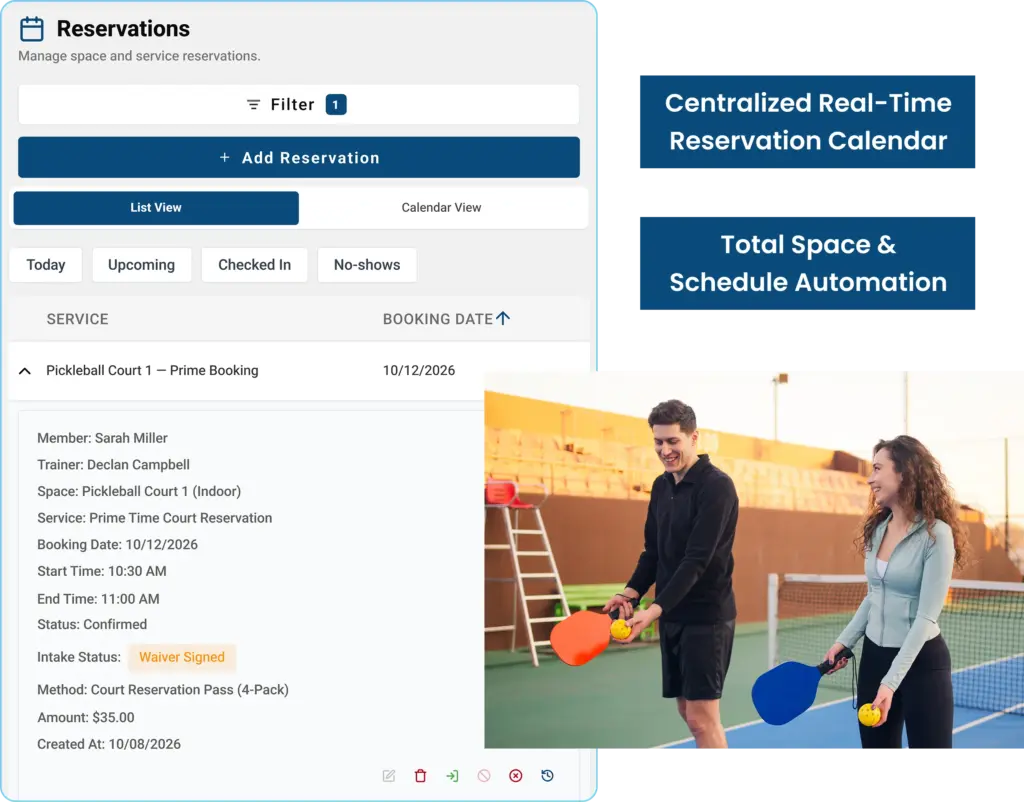
A phone request on a sticky note. A change on the paper sheet. A member at the counter who was sure the court was free. Bring the department’s reservations into a shared calendar so the next answer starts with the schedule.

Set space availability

Set the open days and hours for each space.

Offer bookable slots

Offer appointment slots within the service schedule.

Block unavailable periods

Use blackout dates for unavailable periods.

Coordinate schedules

Keep room and instructor schedules coordinated.

Start With Your Reservation Desk

Run court, lane or room bookings in Cloud Studio Manager while your center keeps its existing main membership system. Focus the change on the spaces and reservations your department manages.

One Court. Different Ways to Play.

Pickleball court reservation software should fit the program you are offering. A group reserving a court needs a different booking option from a member joining an organized beginner session.
Play Format Reserved Play Set It Up As

A court appointment

What Members Book

Offer a defined time for members who want to reserve the court.

Play Format Organized Open Play Set It Up As

A class with participant limits

What Members Book

Let members book a place in a scheduled group session.

Play Format Skill-Level Sessions Set It Up As

A clearly named class

What Members Book

Separate beginner and intermediate sessions in the timetable so members know which one to choose.

When seasonal demand changes, review the balance between reserved play and organized sessions. Your team chooses how to allocate the hours. Pickleball court reservation software gives members a consistent way to find and book what you offer.
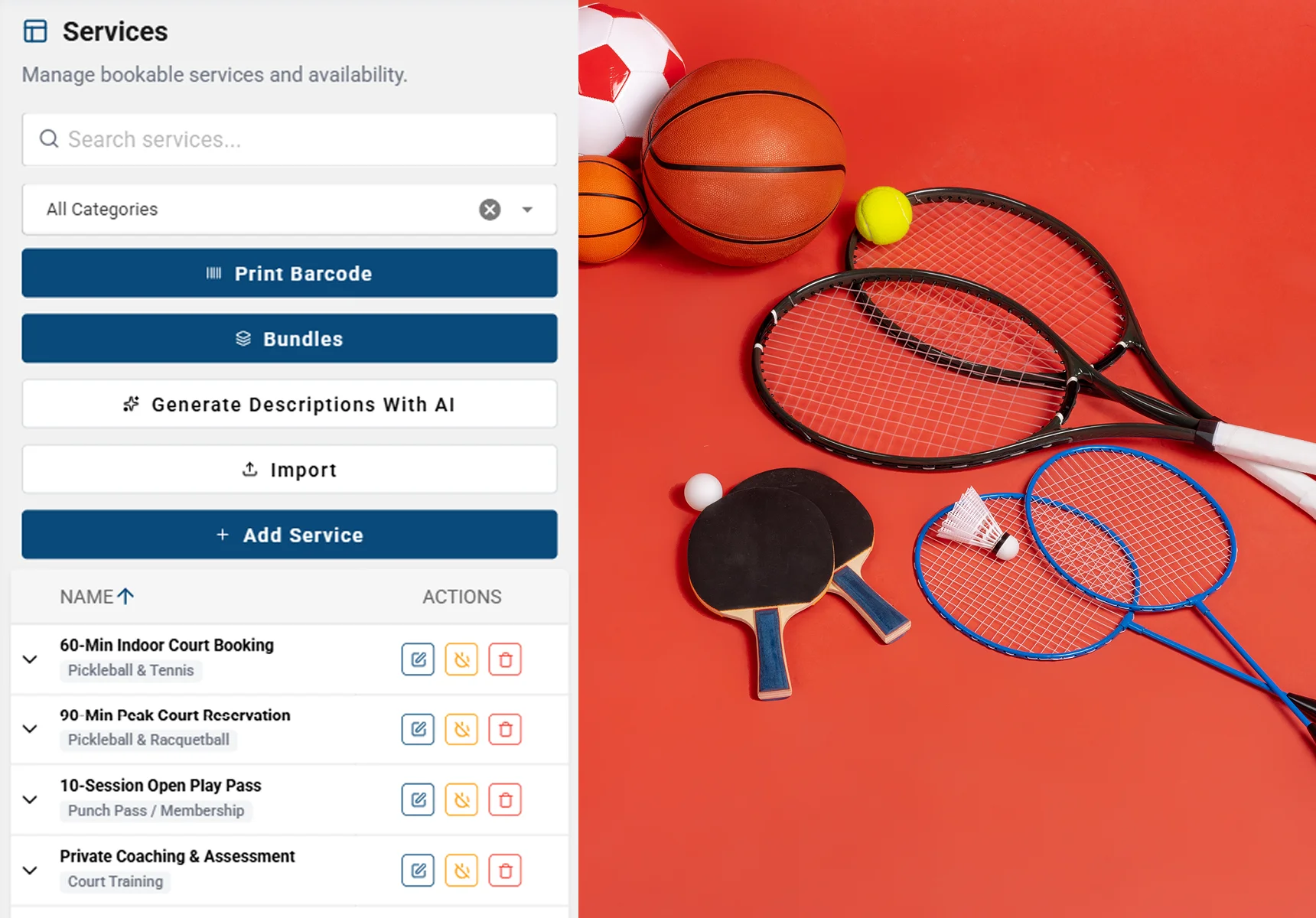
Make More of Your Department Bookable

Tennis, Basketball and Racquetball

A returning client should not guess between a two-week fill, an extended fill, or a new set. Present clear eligibility guidance before the calendar appears, then attach the real duration and price to each option.

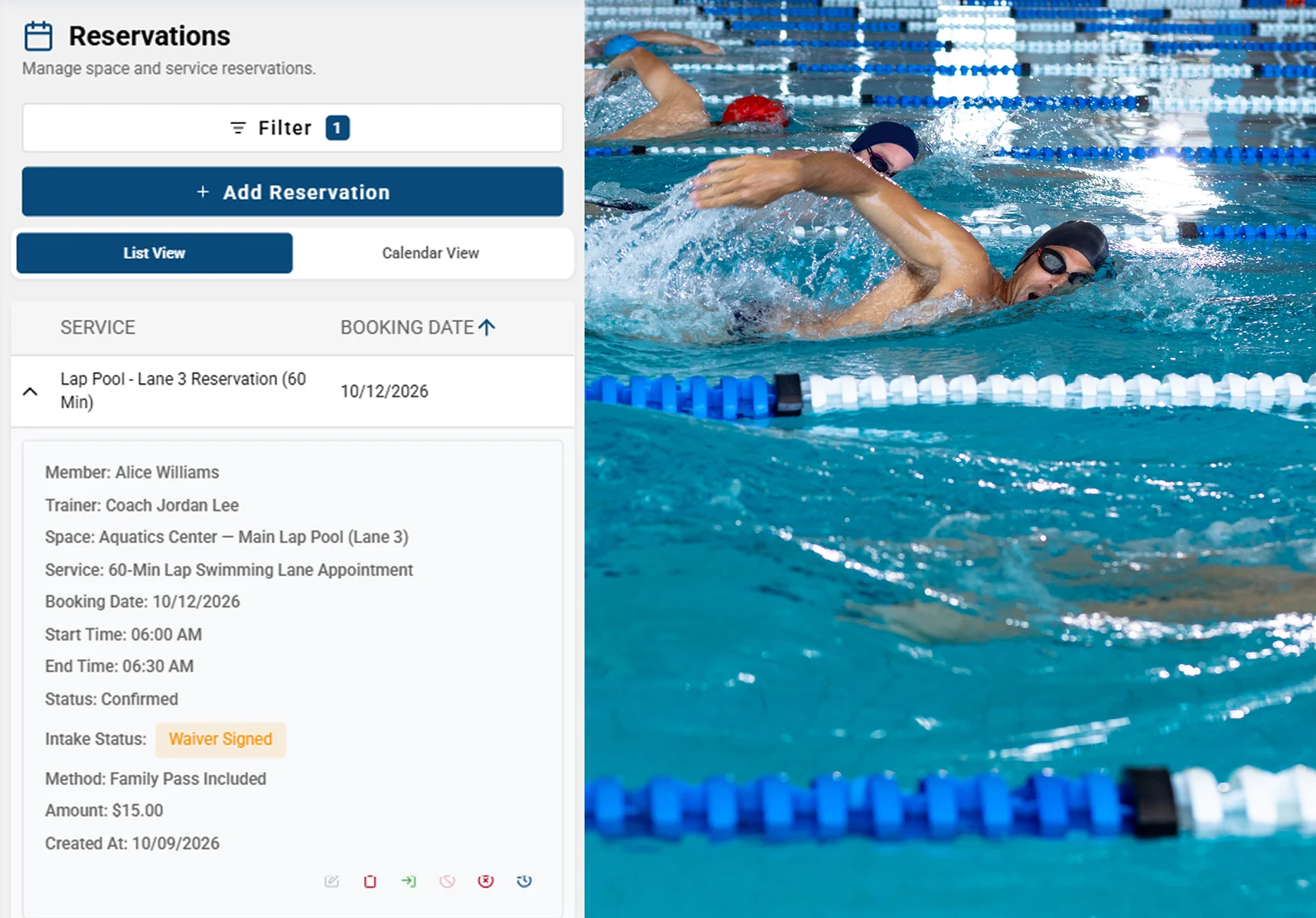
Pool Lanes

Let members select a lane appointment from the published schedule. Keep bookable times aligned with the hours your aquatics team makes available.

Rooms

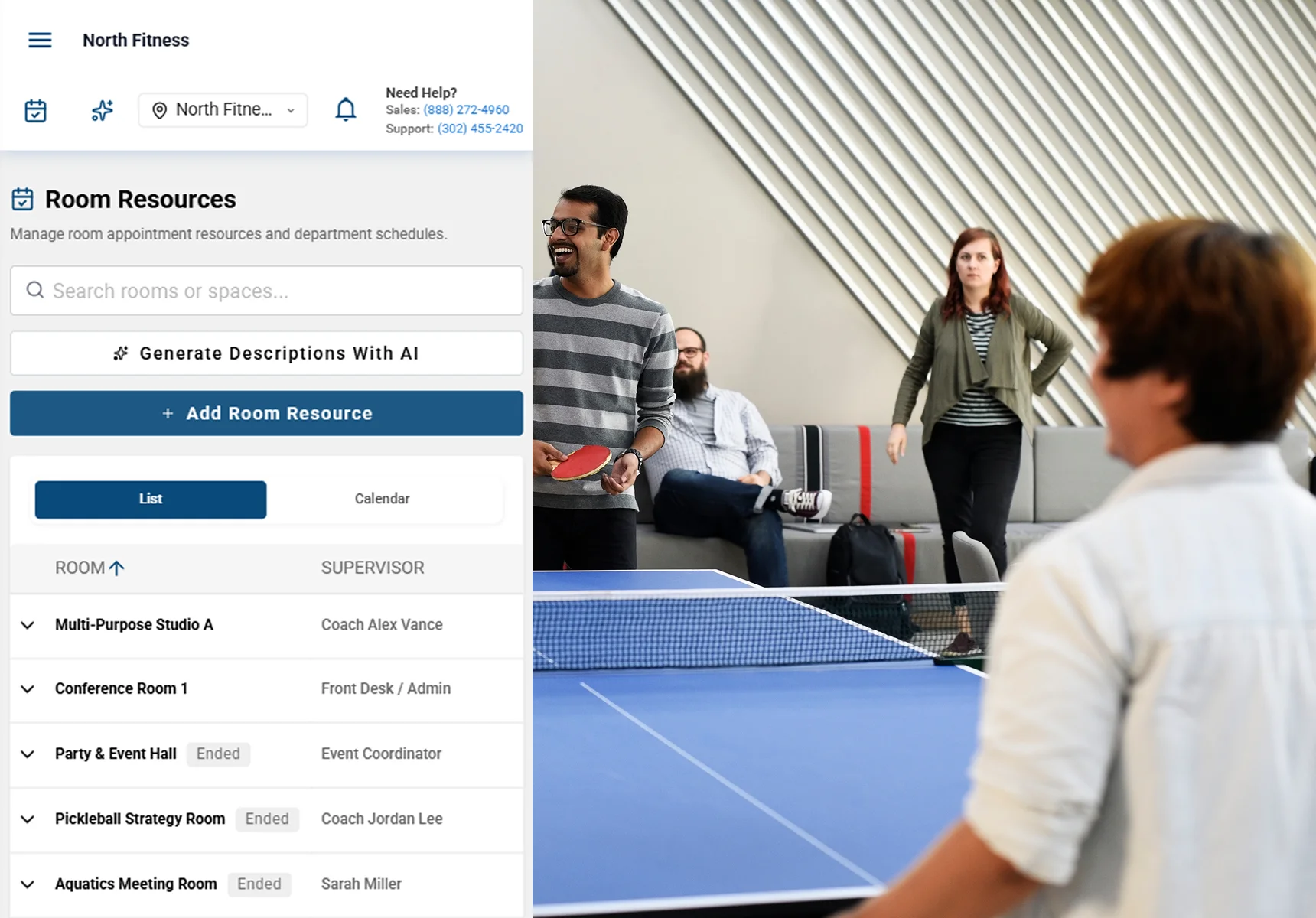
Offer rooms as appointment resources for scheduled use. Members can choose a time, and reception can refer to the department calendar when questions come up.

Protect the Time Someone Else Could Use

An empty court can be frustrating when another member wanted that hour. Pair reminders with a cancellation policy members can understand before they book.

Before the Session

  • Send text and push reminders.
  • Explain the cancellation deadline.
  • State any deposit or applicable fee clearly.

When Plans Change

  • Apply your configured no-show and late-cancellation fee rules.
  • Keep the policy consistent when answering member questions.
  • Review missed bookings when discussing the schedule.
Cloud Studio Manager supports appointment deposits and no-show and late-cancellation fees. Your department sets the policy; members should know what applies to their reservation.

Take the Payment. Keep the Record.

Accept card and ACH payments through Host Merchant Services. Keep booking and payment activity in Cloud Studio Manager so reception has a place to begin when a member asks about a charge.
Cloud Studio Manager software is free, with no pricing tiers and unlimited users. Host Merchant Services earns revenue through payment processing. Integrated payments require an HMS account, with processing fees separate from the software price.

Frequently Asked Questions

Pickleball court reservation software lets members find and reserve available court times online. Cloud Studio Manager brings appointment booking, reminders and integrated payments into a shared department workflow, with access through the member portal and mobile apps.
Yes. Courts, pool lanes and rooms can be configured as appointment resources. Members choose from the available times offered by your department and complete the reservation through the portal or app.
Yes. Cloud Studio Manager supports no-show and late-cancellation fees for appointments. Set the applicable policy and explain the fee and cancellation deadline before members book.
No. Start with court, lane or room reservations in Cloud Studio Manager while retaining your center’s main membership system. This approach focuses on the booking work your department needs to manage.
Yes. Cloud Studio Manager software is $0, with no pricing tiers and unlimited users. Integrated card and ACH payments run through Host Merchant Services and require an HMS processing account. Payment processing fees are separate from the software price.

Put Your Next Reservation on the Calendar

Give members an easier way to book and your front desk a schedule it can work from. Start with your courts, pool lanes or rooms.